Help
Support & guides
Everything Tappy Paws records lives on your device. There are no accounts and nothing in the cloud, so we give you simple tools to back up your data and move it to another iPhone or iPad whenever you like.
You'll find all of this in the app under Settings (the gear on the Home screen) → Data → Back Up & Transfer, shown here.
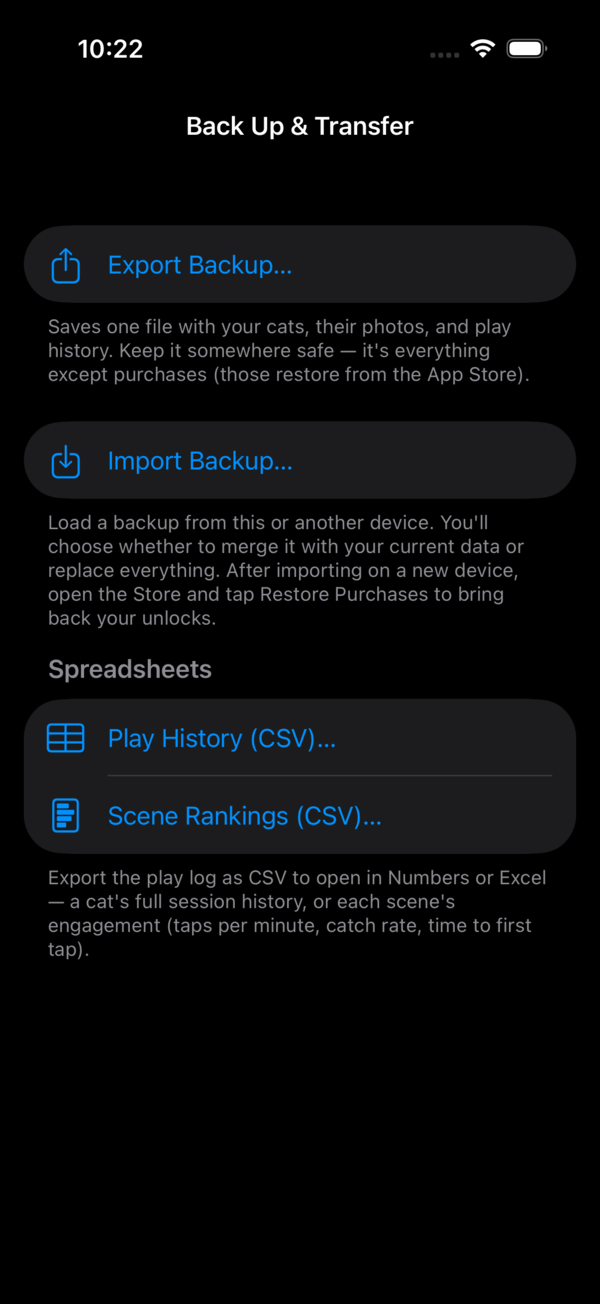
Back up and transfer your data
A backup is a single .tappypaws file holding your cats, their photos,
play history, and settings.
Export a backup
- Open Tappy Paws and tap Settings on the Home screen.
- Under Data, tap Back Up & Transfer, then Export Backup.
- Choose where to save it (Save to Files, AirDrop, Mail, and so on).
Move it to another device
AirDrop the file to your other iPhone or iPad, save it to iCloud Drive or Files, or email it to yourself. Any way of getting the file onto the other device works.
Import it
On the other device, do either of these:
- Tap the
.tappypawsfile in Files, AirDrop, or Mail. Tappy Paws opens straight to the import prompt. - Or open Settings → Data → Back Up & Transfer → Import Backup and pick the file.
Then choose how to bring it in:
- Merge keeps what's already on the device and adds anything new. Nothing is deleted, and it's safe to repeat.
- Replace erases the current cats and history and loads the backup instead. Tappy Paws saves a recovery copy of the current data first, just in case.
Moving to a new device, and your purchases
Backups include your cats, photos, history, and settings. They do not include purchases, because those belong to your Apple ID rather than to the app's data.
To bring purchases to a new device, sign in with the same Apple ID, open the in-app Store, and tap Restore Purchases. Your unlocked scenes come right back.
Export to a spreadsheet (CSV)
Want your cat's stats in Numbers or Excel? In the same Back Up & Transfer screen:
- Play History (CSV): pick a cat (or All cats) for a row-per-session history.
- Scene Rankings (CSV): a summary of each scene's engagement (taps per minute, catch rate, time to first tap), ranked the way the app ranks them.
Cat-safe play (Guided Access)
So a stray paw can't exit the game or wander into other apps, we recommend turning on Guided Access before you hand the screen to your cat. Watch the short setup video. A non-tempered-glass screen protector is a good idea too.
Still need help?
Email us at [email protected] and we'll help you out.